Start here03 / 68
Math keyboard & input
The on-screen keyboard helps you enter notation without remembering every command.
Find itSidebar footer → Keyboard
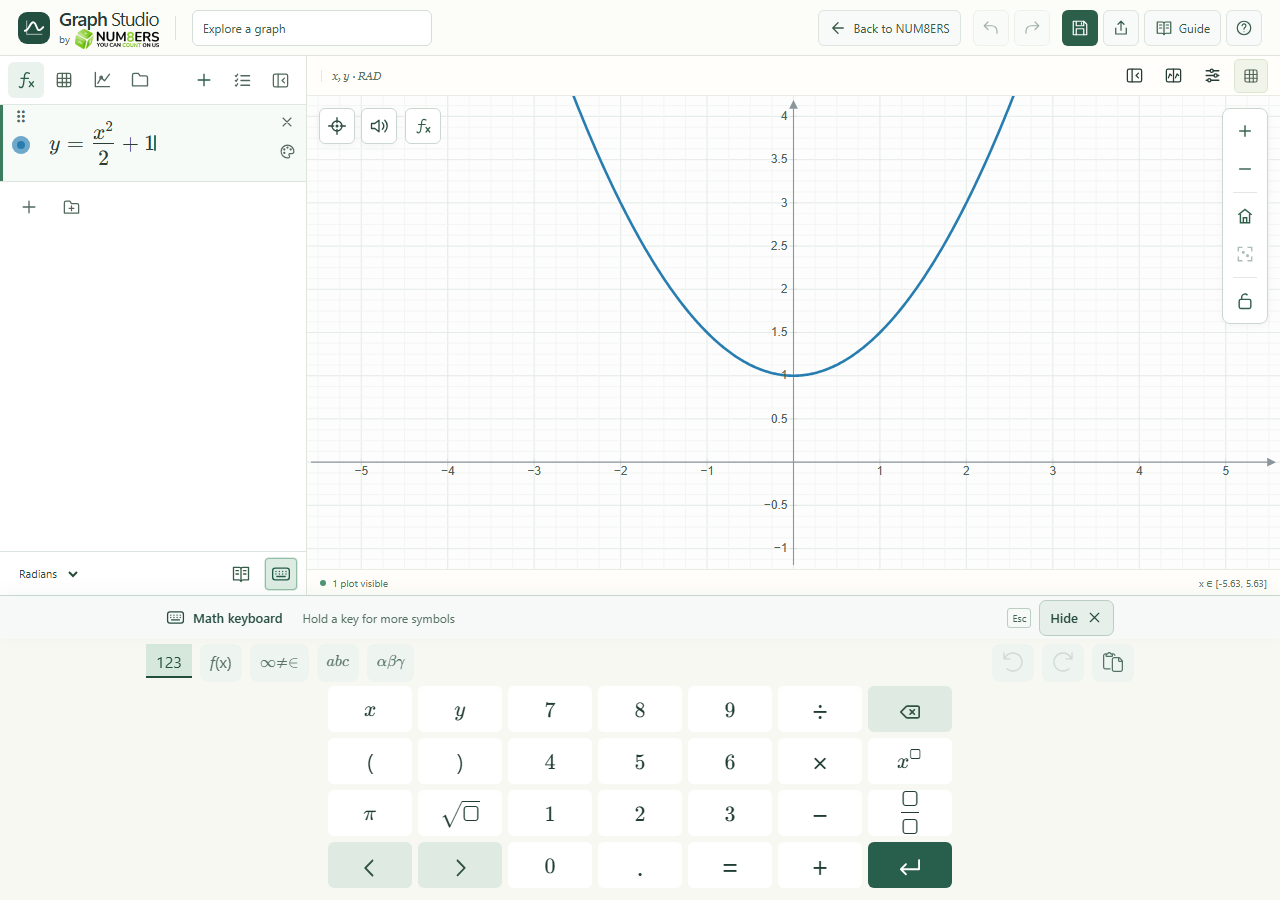 The math keyboard includes layout tabs, symbol keys and a visible Hide control.Click to enlarge ↗
Try it step by step
- Focus the expression you want to edit, then open Keyboard.
- Choose a layout: numbers, symbols, letters or Greek letters. Hold a key that offers extra symbols to see its alternatives.
- Use the cursor arrows to move between numerator, denominator, powers and other placeholders.
- Select Hide at the top of the keyboard or press Escape when you finish. The footer keyboard button also toggles it.
Options explained
- Basic keys
- Numbers, decimal point, equality and arithmetic operators.
- Math templates
- Fractions, exponents, square roots, integrals, brackets and other structured notation. Fill each placeholder before moving on.
- Letters and Greek
- Use variables and constants such as x, a and . Function names and identifiers remain mathematical source when the interface language changes.
- Undo, redo and clipboard
- Keyboard editing tools act on the active math field. The header undo buttons manage document edits.
- Large text and contrast
- The keyboard follows the display-size and contrast preferences in Graph settings.
- Plain source fields
- Some tools show typeset math while idle and the editable source when focused. Enter the expression without replacing it with a screenshot.