Graph settings48 / 68
Display & accessibility settings
Adjust readability for your screen, classroom or preferred way of exploring math.
Find itGraph settings → Display
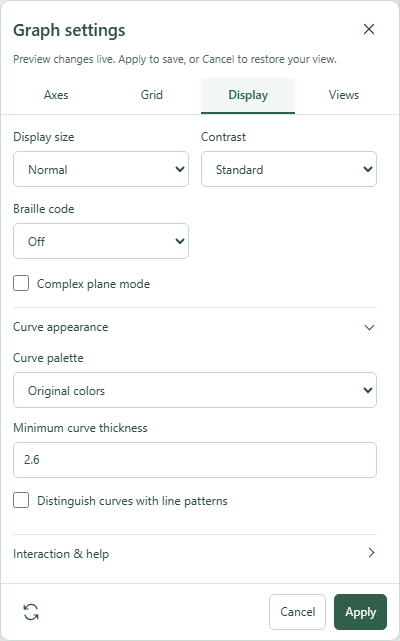 Graph settings: Display with the relevant options expanded.Click to enlarge ↗
Try it step by step
- Choose Normal or Enlarged display size.
- Select Standard, Reverse contrast or High contrast.
- Open Curve appearance to adjust palette, minimum thickness and line patterns.
- Choose a Braille code or complex-plane mode if needed, then Apply.
Options explained
- Display size
- Enlarges supported interface and graph elements. Browser zoom is also available.
- Contrast
- Standard preserves the usual palette; Reverse and High contrast provide alternative presentations.
- Curve palette
- Original colors or Color vision friendly.
- Minimum curve thickness
- Sets a presentation minimum from 1 to 6; individual styles may already be thicker.
- Line patterns
- Distinguishes curves with patterns as well as color.
- Braille code
- Off, Nemeth or UEB. Turning a code on enables supported Braille tools.
- Complex plane mode
- Shows complex values in a real–imaginary workspace.