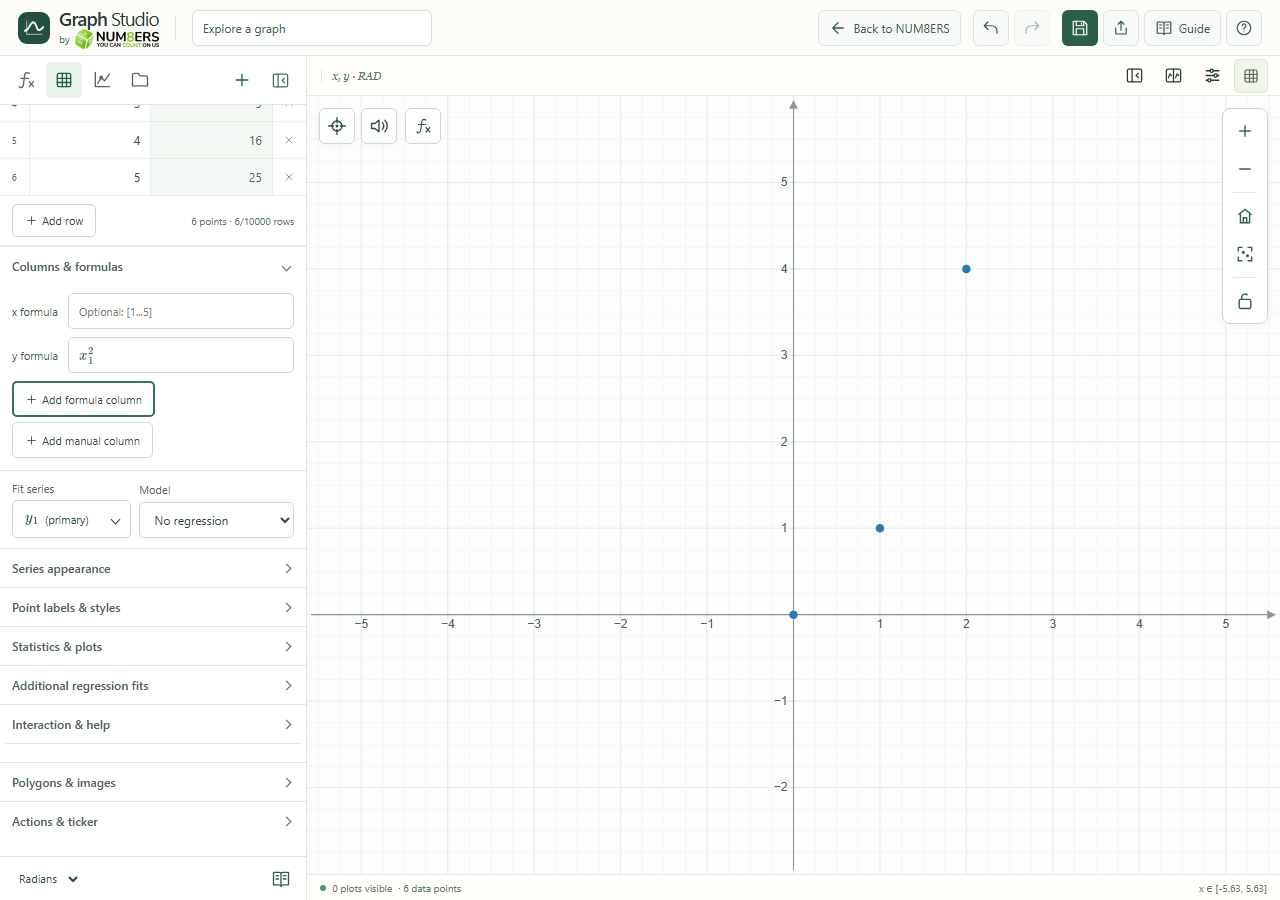
Calculate table values from expressions while keeping the original manual entries available.
Find it
Data → table → Columns & formulas
Columns & formulas for a demonstration data table.Click to enlarge ↗
Try it step by step
Enter a formula for the x or primary y column, or add an extra formula column.
Use the table’s named columns in your formula.
Check that a list result has the expected row count. Use Match rows to x formula when offered.
Clear a formula or switch back to Manual to restore preserved manual cells.
Examples to try
Each card is one input. For definitions, enter the cards in order. Formula-only cards belong in the tool described above.
Use as the y-column formula when the table’s x column is named .
Options explained
x formula
A scalar fills rows; a list supplies x values. The match-rows action adjusts the table to the list length.
y formula
Compute the primary series from x or another supported source.
Additional columns
Add up to four extra manual or formula y columns sharing x. Rename or remove them as needed.
Manual / Formula
Choose direct cell editing or calculated values. Manual backups survive mode changes.
List shape
A whole-column formula must return a list matching the row count, up to 10,000 rows. The separate 200-cell limit applies to individually entered expression cells in each column, not to the number of values produced by a whole-column formula. Numeric cells do not count toward that 200-cell limit.
Dependent expressions
Column names are available to the expression workspace as lists. Avoid duplicate names.